

Custom Fields
Custom Fields allow you to tailor your sanitation forms to collect exactly the type of data you need. From simple numbers to complex formulas, you can build powerful data collection tools.
Add Custom Fields
Section titled “Add Custom Fields”Each sanitation form has three levels where you can add custom fields: Route, Tree, and Sample. To add a field, click the “Add question” button at the corresponding level.
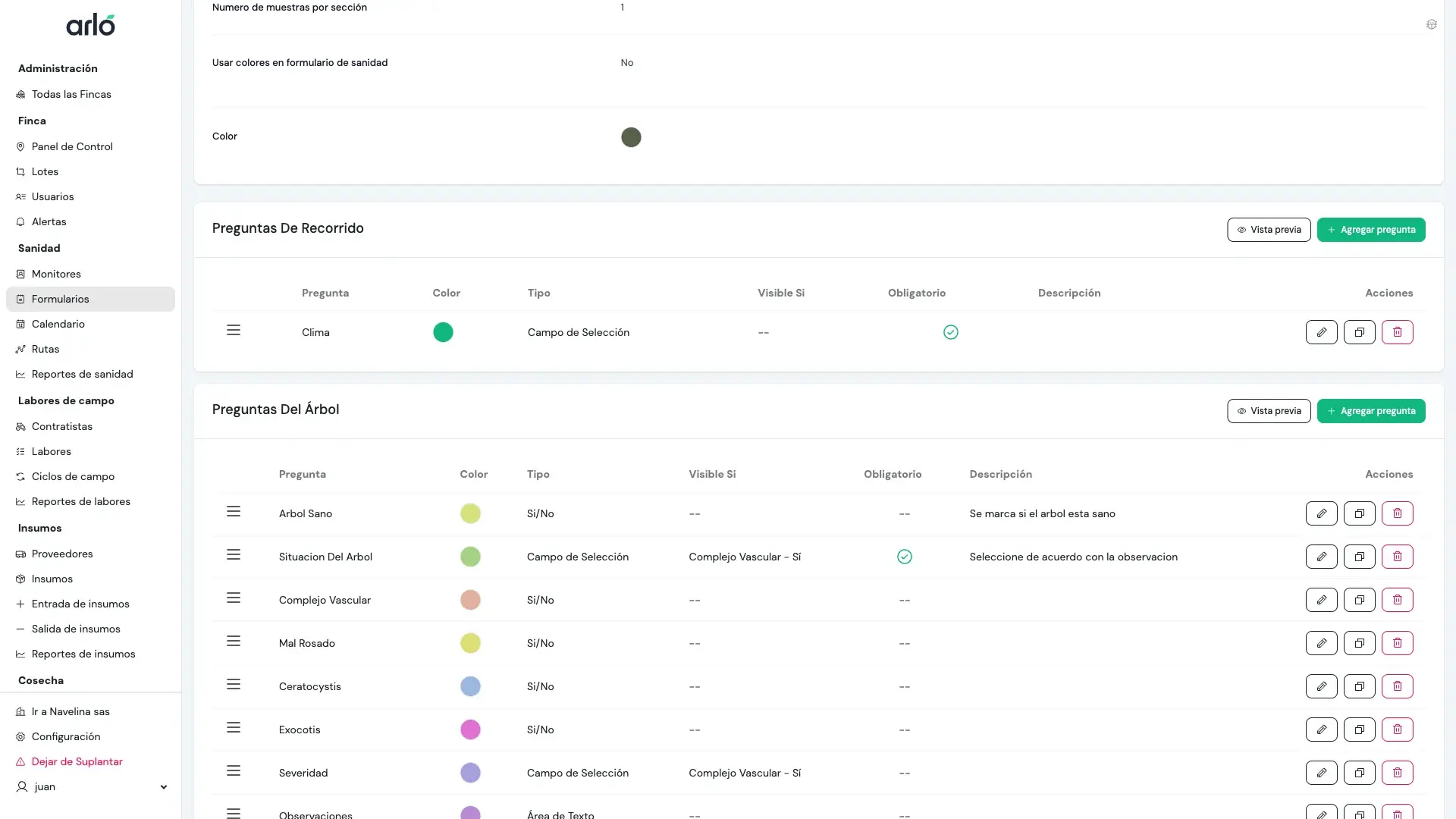
The interface allows you to view all existing fields organized by level, each showing its type, color identifier, visibility conditions, and options to edit, duplicate, or delete.
Field Types
Section titled “Field Types”When adding a field to a form level, you can choose from the following types:
| Type | When to use |
|---|---|
| Text | Short text like comments or names. |
| Text Area | Longer descriptions or observations. |
| Number | For values you want to calculate or average (e.g., “Pest count”). |
| Checkbox | For simple “Yes/No” or “Present/Absent” indicators. |
| Select Field | Choose one option from a dropdown list. |
| Radio Buttons | Choose one option from a visible list. |
| Date / Datetime | For logging specific moments or deadlines. |
| File / Photo | To attach photographic evidence or documents. |
| Association | Link the entry to another record in your finca (e.g., a specific Contractor or Supply). |
| Calculated | For automatic math based on other fields. |
Advanced Logic
Section titled “Advanced Logic”Validations
Section titled “Validations”You can ensure data quality by setting rules for your fields:
- Required: The monitor cannot finish the entry without filling this field.
- Min/Max Values: For numbers, you can set limits (e.g., “Temperature must be between 0 and 50”).
- Patterns: For text, you can enforce formats like “Numbers only” or “Alphanumeric”.
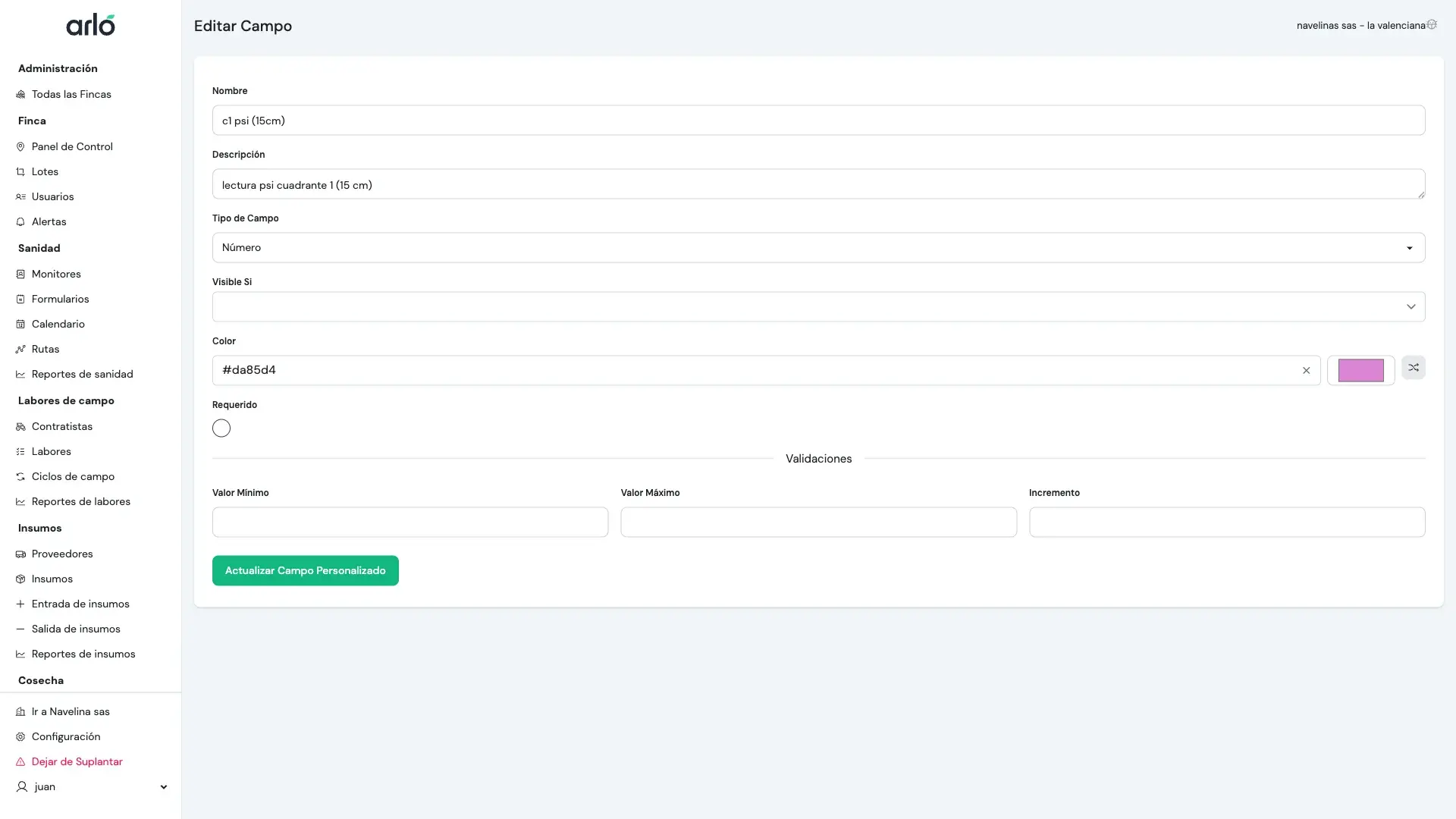
The image shows validation options for a numeric field: minimum value, maximum value, and increment (step).
Conditional Fields
Section titled “Conditional Fields”You can hide or show fields based on other answers.
- Example: Only show a “Photo” field if the “Disease present” checkbox is checked.
- Note: Conditional logic in Sanitation Forms currently works based on Checkbox fields.
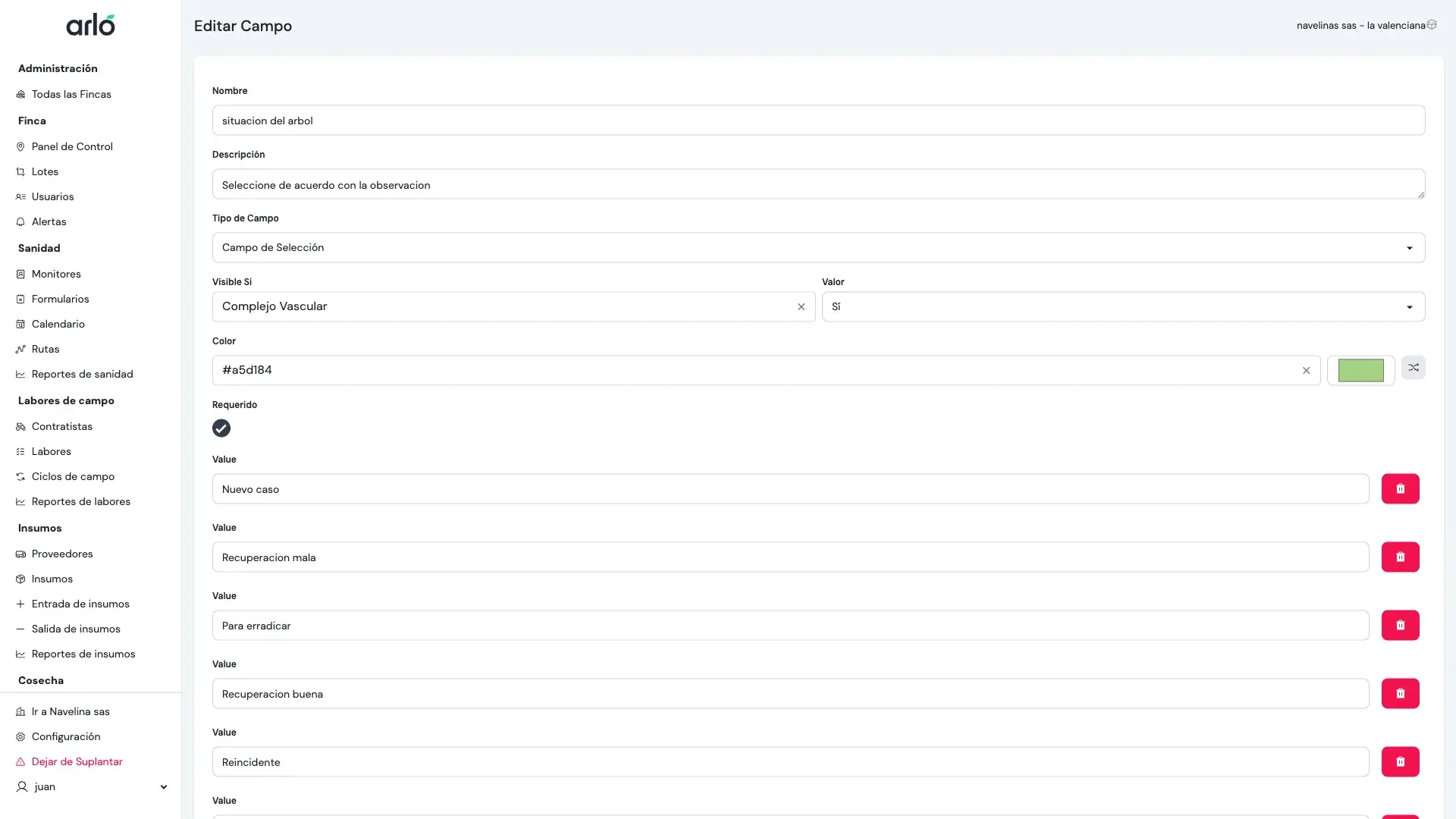
The “Visible Si” (Show If) section allows you to specify which checkbox field must be marked (Yes/No) for this field to appear in the form.
Calculated Fields (Formulas)
Section titled “Calculated Fields (Formulas)”Calculated fields perform math automatically as the monitor enters data.
- Formulas: You can use standard math operations (+, -, *, /) and parentheses.
- References: Use the “Insert Field” button to reference other numeric fields in your formula.
- Hierarchy: A field at the Sample level can reference fields from the Tree and Route levels.
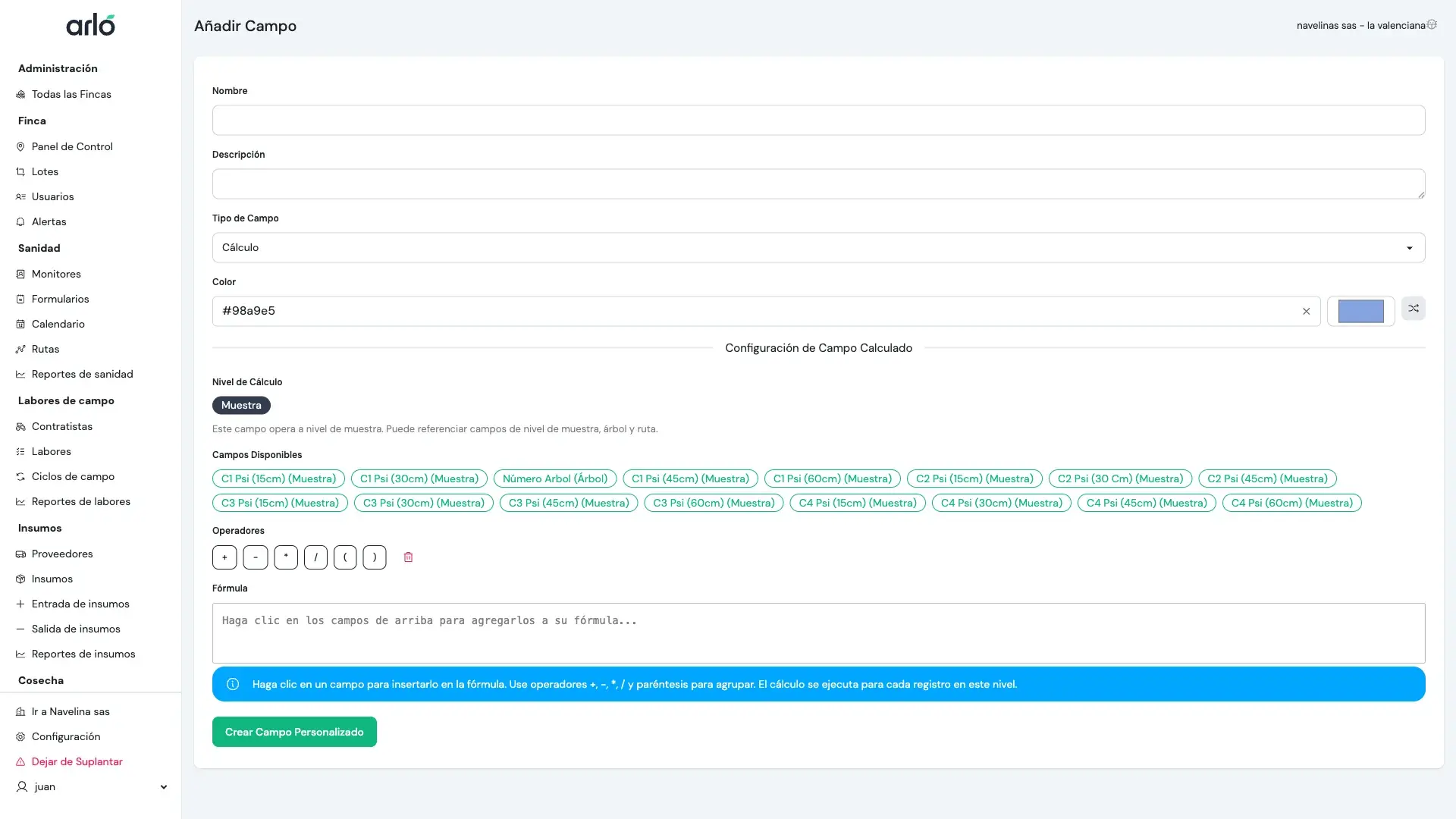
The formula editor displays available fields you can insert (organized by level), mathematical operators, and the text area where you build your formula.
Important for Reports
Field types like Number, Checkbox, and Select are the best for generating clear charts and maps. Free-text fields are harder to analyze at scale.